Spatial.Host provides a robust, private-cloud environment optimized for GIS workloads. Designed to support a wide range of geospatial applications, databases, tools, and virtual workstations, the platform enables users to provision and manage their environments through a secure, self-service interface.
With automated deployment workflows and streamlined configuration management, Spatial.Host minimizes infrastructure overhead and accelerates time-to-operation — allowing users to have their GIS software and applications fully operational within minutes. Engineered for scalability, reliability, and performance, Spatial.Host delivers a modern foundation for enterprise-grade geospatial systems.
In today’s GeoMarvel Live video, we’ll show you just how simple it is to deploy ArcGIS Enterprise 11.5 in Spatial.Host! Feel free to watch above or follow the steps below.

Set up Account & Create Application

Configure Provision & Deploy

View & Access Application

Start Using Your Application
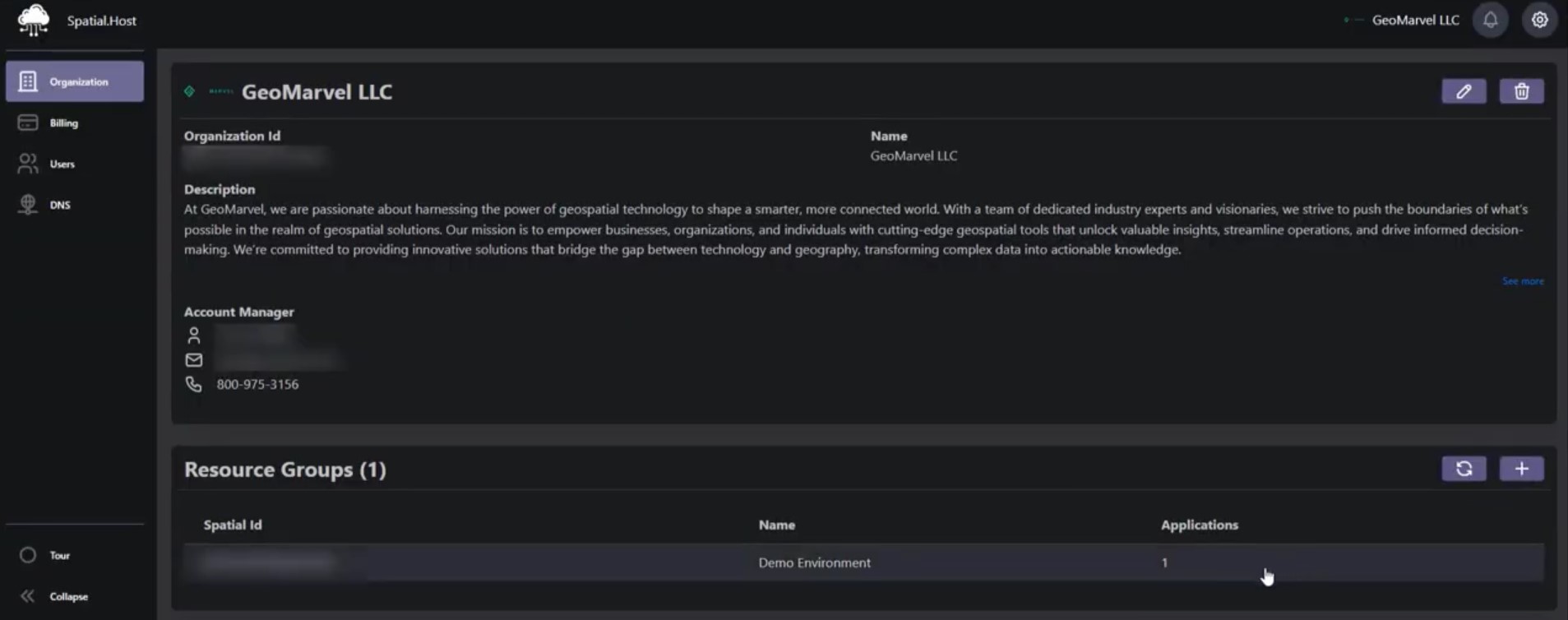
1. In the Organization tab on the left hand side, click into the section under Resource Groups.
2. Once in Resource Groups, click the ‘+’ sign on the right hand side under Applications.

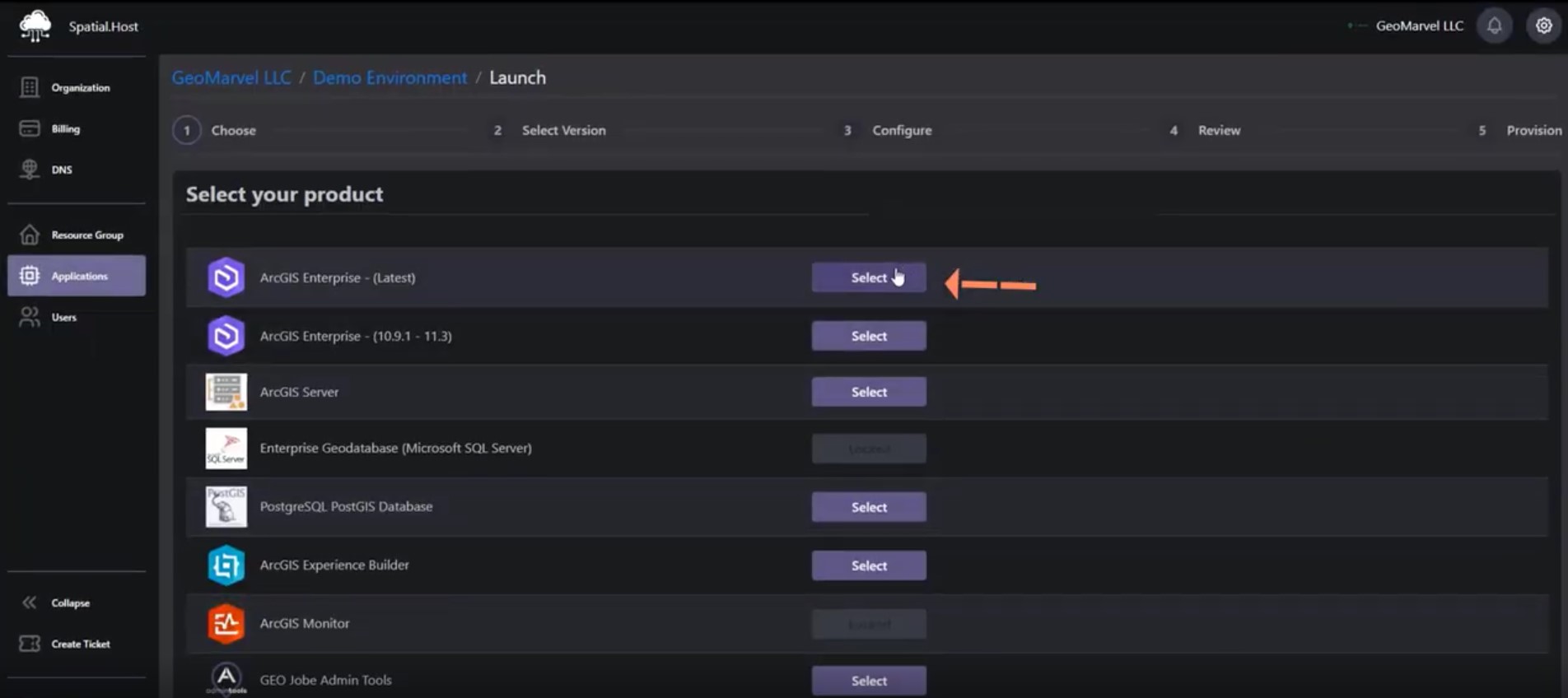
3. You’ll then be prompted to select your product. Go ahead & click the Select button next to “ArcGIS Enterprise – (Latest)”.
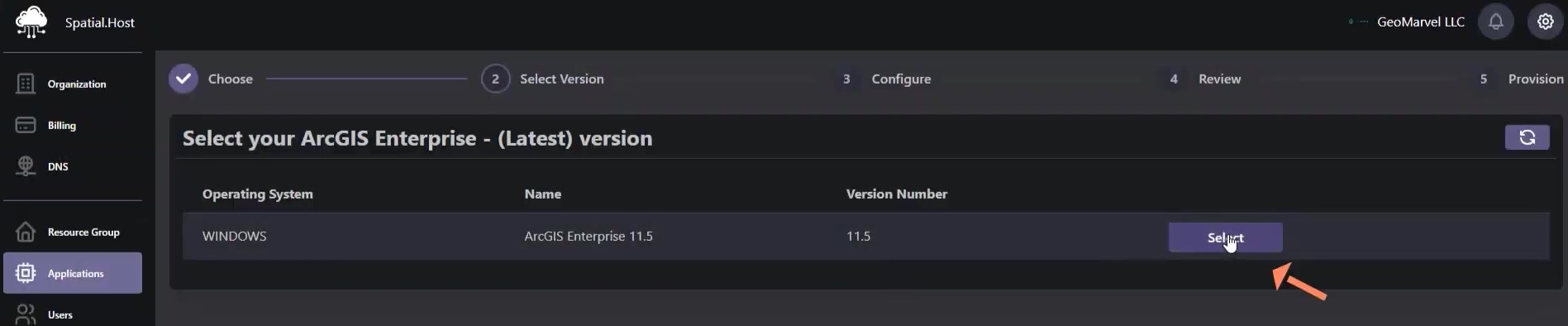
4. Confirm your operating system and version and proceed by clicking Select.
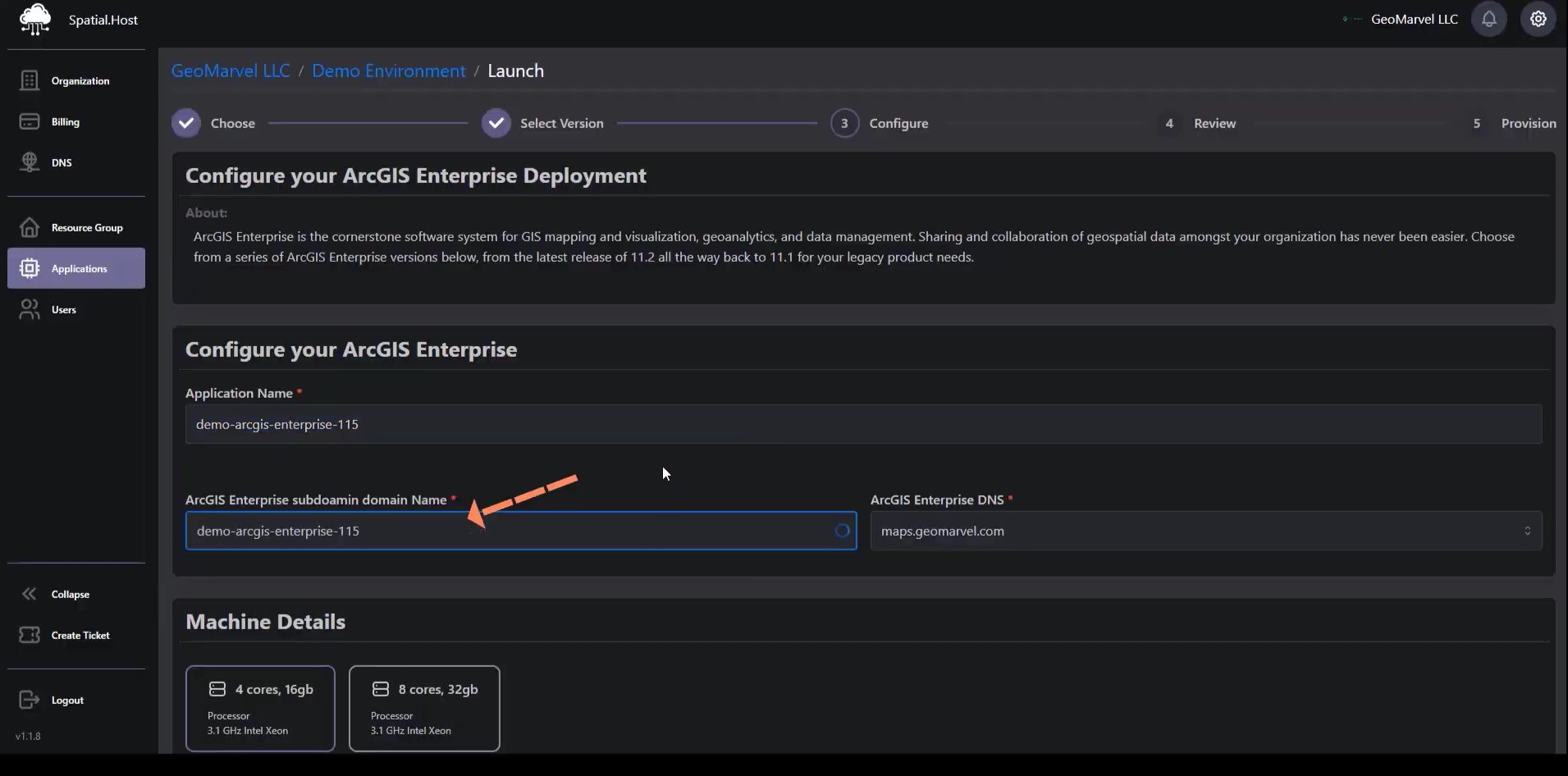
5. To Configure your ArcGIS Enterprise, fill out the Application Name and ArcGIS Enterprise subdomain name.
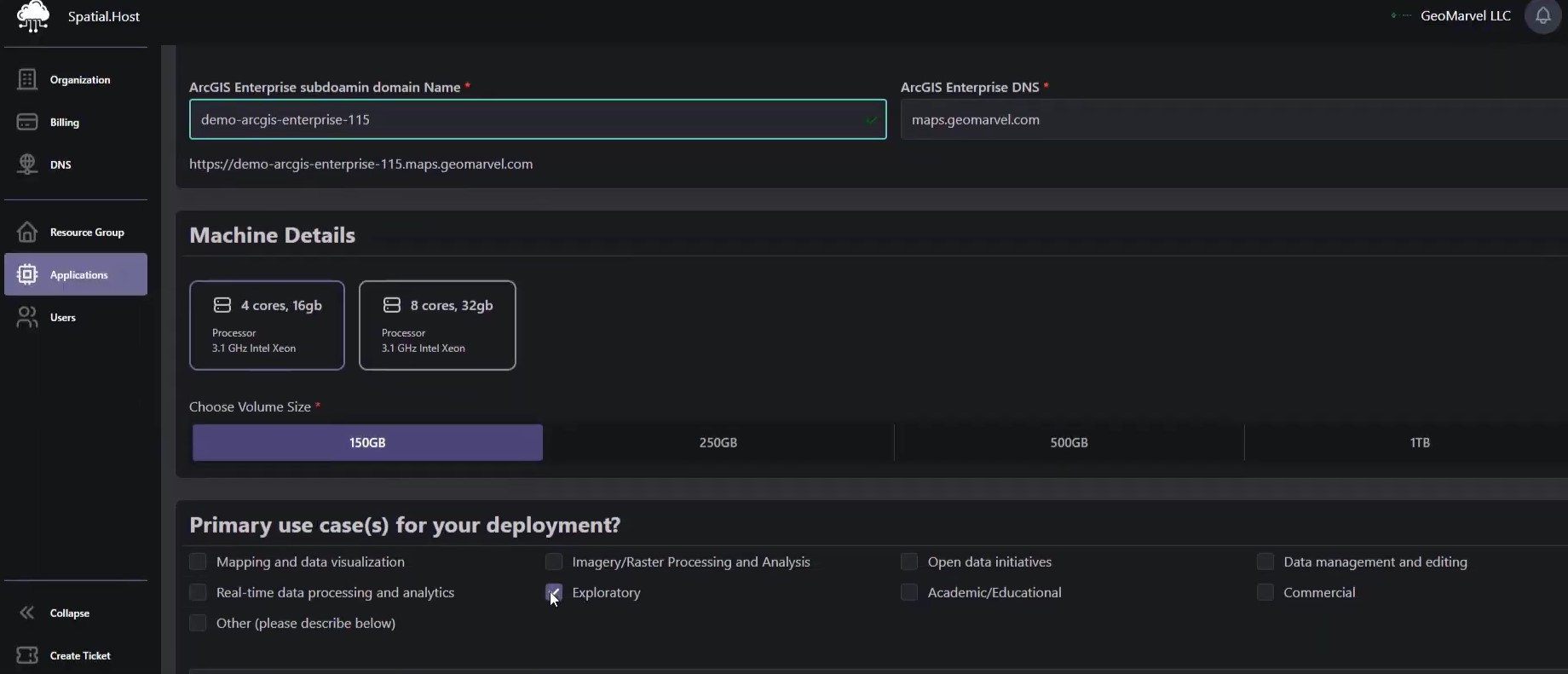
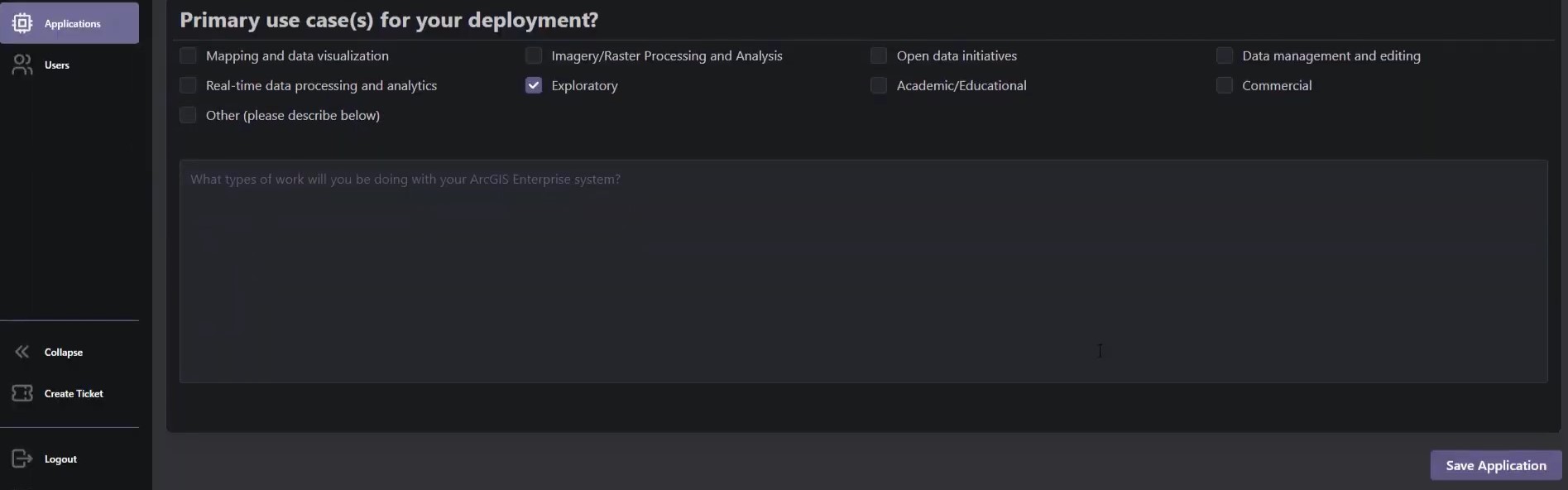
6.Under Machine Details, select your disk space volume & your primary use case(s) for the deployment. Once complete, click Save Application.
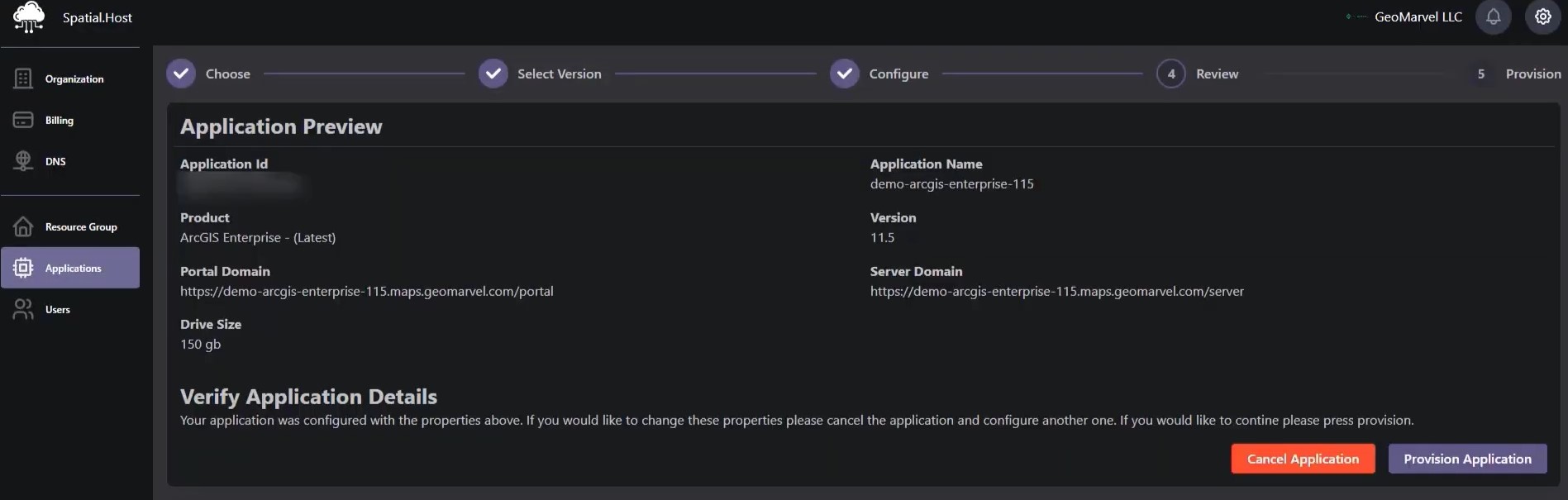
7. The next screen will provide an Application Preview. Verify your details & once everything is confirmed correct, click Provision Application. Your ArcGIS Enterprise 11.5 environment will begin creating resources in the background in preparation for deployment.
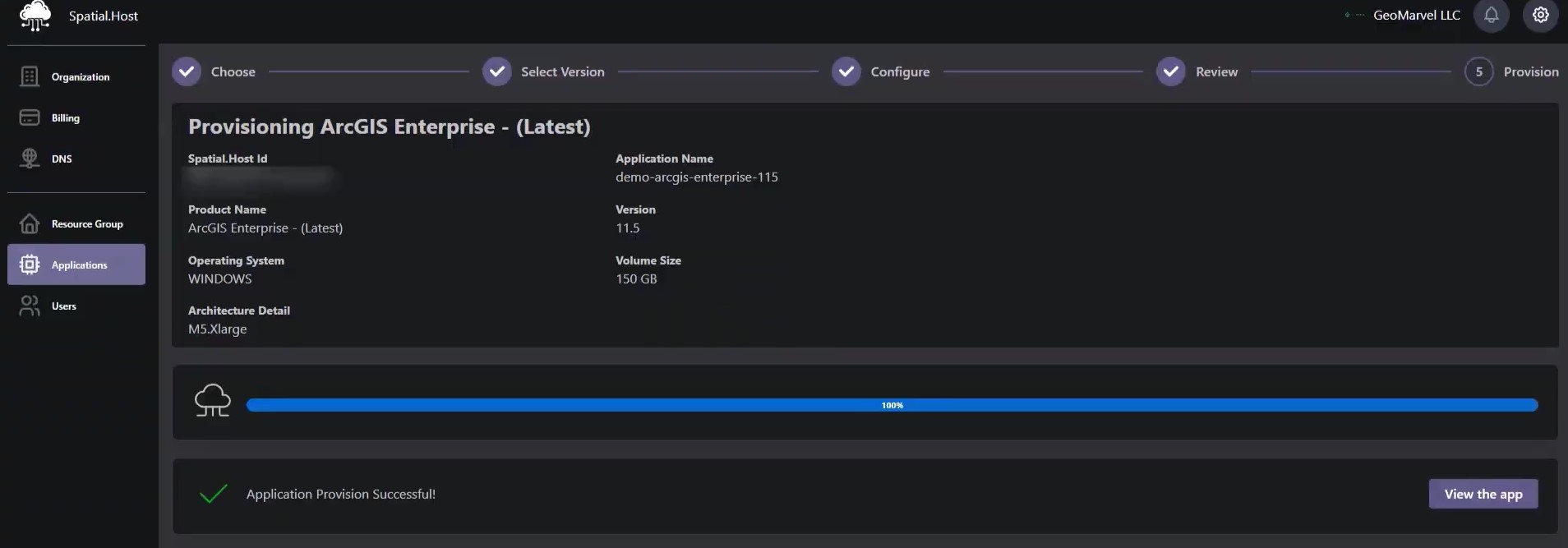
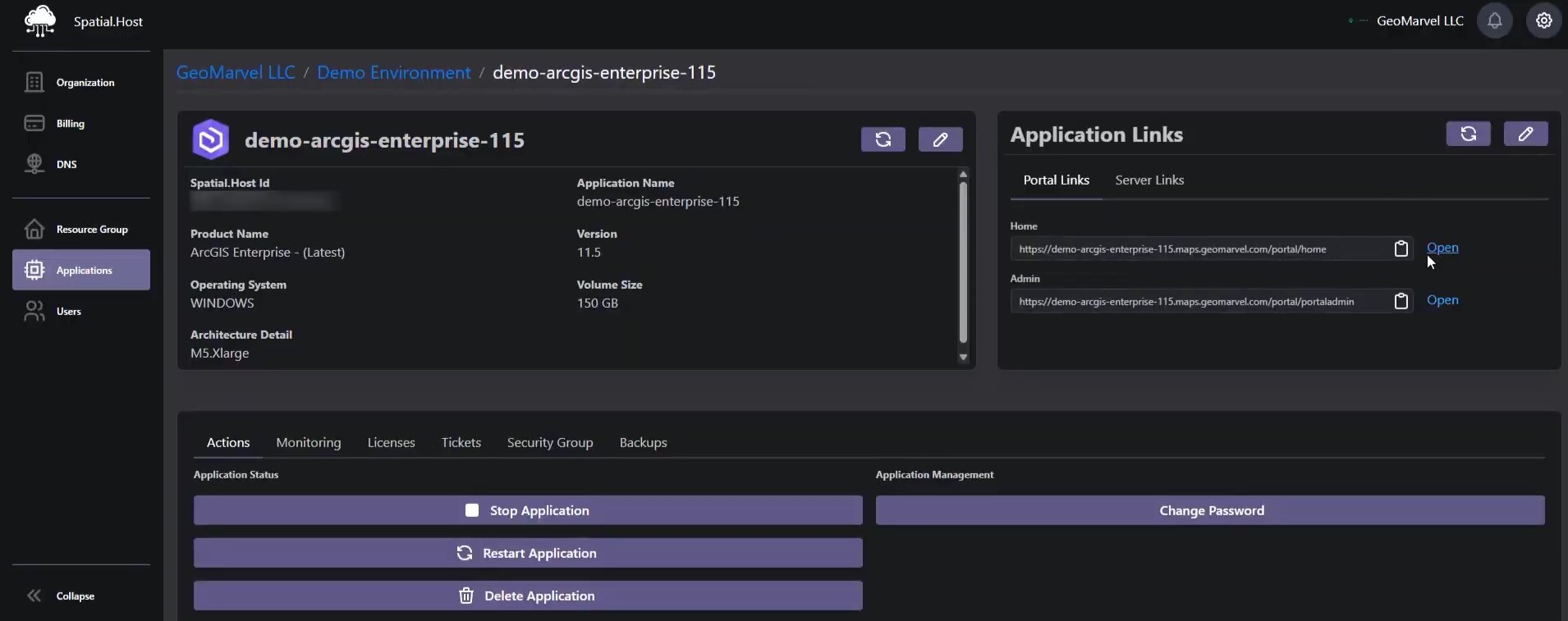
8. Within about 20 mins, your Application will be fully provisioned and you can click “View the app”.
9. On the right hand side under Application Links > Portal Links, click the Open button next to Home.
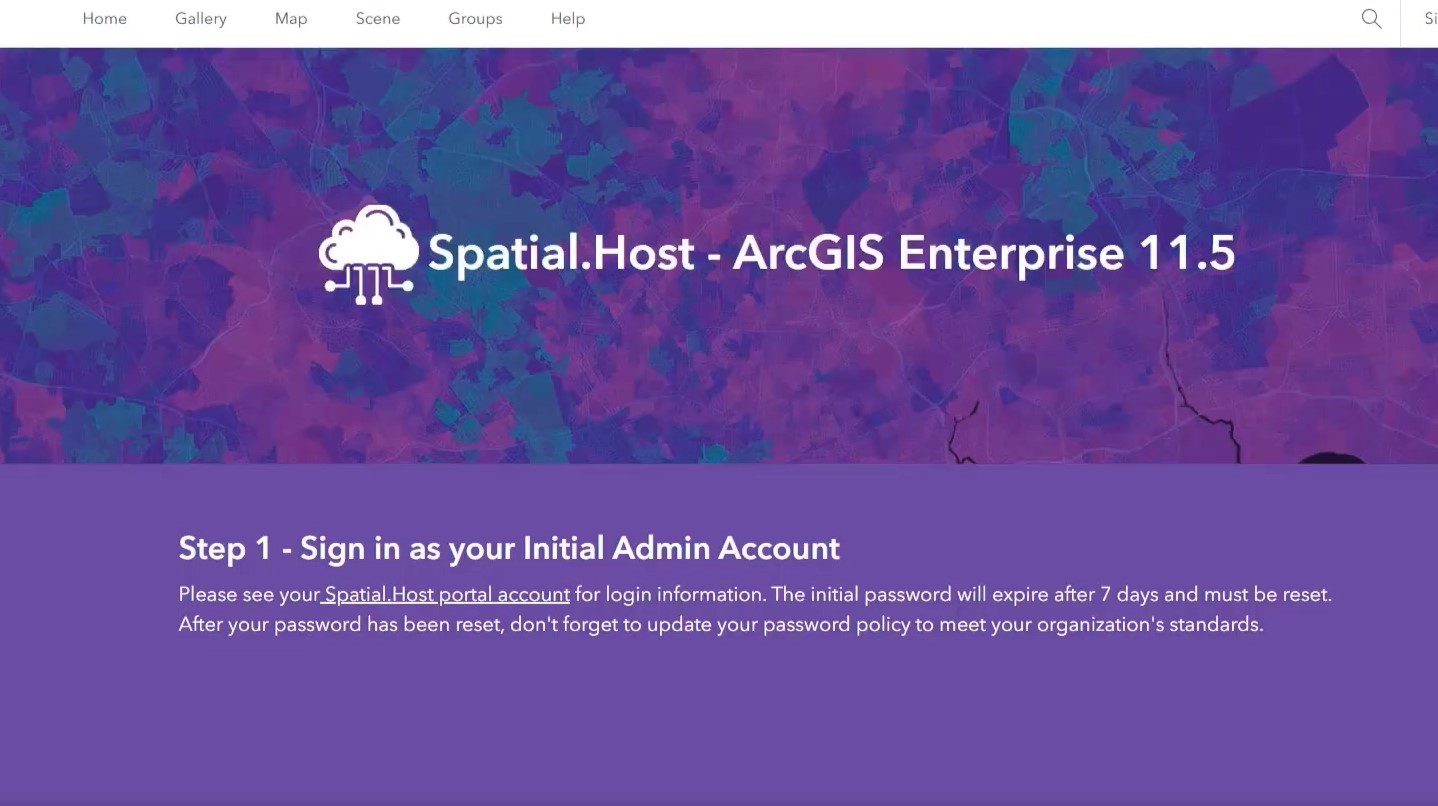
You’ll be brought to your newly deployed ArcGIS Enterprise 11.5 environment!
It’s time to revolutionize your geospatial hosting experience. Spatial.Host offers a range of powerful products designed to cater to your geospatial hosting needs, including application, database, tool, & workstation hosting.
Whether you have questions, need technical guidance, or require assistance with setup, our knowledgeable team is ready to provide the support you need. Sign up now, and let Spatial.Host take your GIS infrastructure deployments to new heights!